
Monday, 16 June 2020
autanabp
How to delete a user from the system.
To delete a user, let’s go to:
- Click on the icon in the upper right corner.
- Click on the Manage Users option.
- Select the user to delete, clicking right on the user’s nameIn the upper right corner, we will find the “More” menu in which is the Delete option.
You can also select this option by clicking on the trash can icon in the corresponding user, which is in the list view.

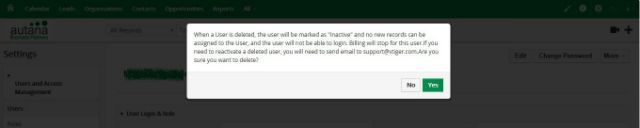
Before completing the deletion process, the system will ask us for confirmation for the deletion of the data, in this message it will inform us of the actions that will be taken with the confirmation:
- The user will be marked as “Inactive”.
- No records can be assigned to this user.
- The user will not be able to log in to the system again.
- We will not be billed again for this user.
To reactivate a deleted user, it can be done by sending an email to the vtiger support service requesting this action.
If we agree with the deletion (inactivation) of the user, press the “Yes” button.
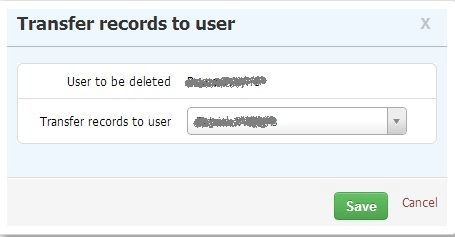
The system will ask us to select a user to transfer all the records owned by the user we are deleting, select one press the Save button.
The user’s Status will be marked as Inactive, the system administrator will still see the user in the All Users list, but with the new status.
Some notes on deleting users:
- The Primary Administrator user cannot be deleted.
- As we indicated in our previous post on user creation, the username field can not be modified, if for some reason we need to change it, what we will have to do is:1- Enter as an administrator user, go to: Manage Users and create a new user with the new email id.2- Delete the old user and transfer ownership of all records to this new user created.
