
Before working with multiple currencies in Salesforce, it is important to keep in mind that this activation introduces permanent changes in the organization, therefore, before continuing you must take into account the implications that this has, we mention some:
- Once this feature is enabled, it cannot be disabled.
- Your Salesforce representative should be contacted to determine the best time to enable this feature, as this activation process temporarily locks down the organization, preventing user logins, among other things. The duration of this lock depends on the data space used.
To see the full list of implications of multi-currency activation, click here
Activate multiple currencies
After knowing what the activation entails, the first thing the administrator user must do is modify the Company Information (in Settings) and activate “Allow assistance to activate multiple currencies”
This setup doesn’t send a request to Salesforce, you’ll need to do it through the customer support process, for example, opening a Case.
It can be a good practice, that, in large organizations, it is activated during the weekend to minimize problems during the working day.
Once multiple currencies are activated, the function can be configured to use multiple currencies in opportunities, budgets, reports, etc; The Administrator defines the “Company Currency” and also maintains the list of active currencies and their conversion rates against the Company’s currency.
Active currencies represent the countries in which the organization carries out its commercial activity.
Each user has a personal currency that is used as the default currency in all their records of opportunities, budgets, etc., although they can also create records and enter amounts using other active currencies.
To set the user’s personal currency: In the user’s personal settings, find “Language and time zone” and change the Currency field:

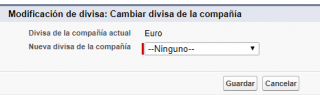
To designate your company currency: In Settings select Manage currencies, and then select Change company currency:
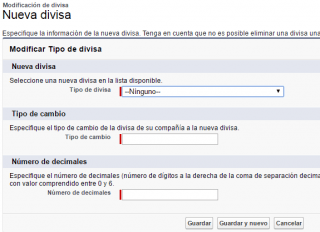
To add new currencies to your organization: Click the New button:
To enable advanced currency management and incorporate dated exchange rates that assign an exchange rate to a specific date range: Press the Enable button, from the Settings menu, Company profile, Manage currencies, check and press the Activated button:
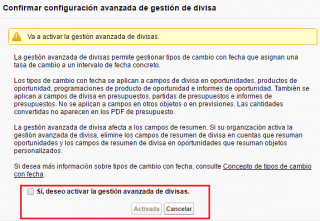
To deactivate it, simply press the Deactivate button.
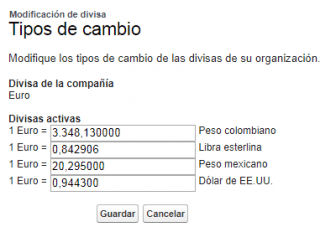
To modify the exchange rate rate: From configuration we go to Manage currencies and click the Modify exchange rates button:
To modify the date of an exchange rate: Click the button Manage exchange rates with date, click Continue and then New exchange rates, on this page we will define the date and the change to that date:
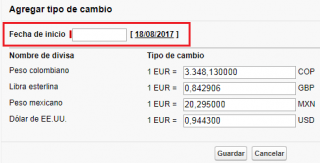
We can also see the exchange rate for all dates:

These exchange rates apply to all currency fields used in the organization.
We leave you this link with the currencies supported in Salesforce: https://help.salesforce.com/articleView?id=admin_supported_currencies.htm&type=0
