
Wednesday, 24 May 2019
When it comes to making reports in eFront, the first thing we must do is create the data tables from which the templates will be populated. Today we will look at several ways to create tables in eFront.
The first one is a table created directly record by record. The first thing we will do is declare our table, we will give it a name and the columns it has with the properties of each one, e.g. the type of data. Then we will add the values of the columns for each record. As an example, we will create a table that will be called Example, it will have three columns and we will add two records:
//Declaring our table
DATA WORK. EXAMPLE;
COLUMN ID;
COLUMN FIRSTNAME;
COLUMN NAME;
//First record
ID = “C001”;
FIRSTNAME= “Carolina”;
NAME = “Perez”;
OUTPUT;
//Second record
ID = “C002”;
FIRSTNAME = “Pedro”;
NAME = “Jimenez”;
OUTPUT;
RUN;
PROC PRINT DATA = WORK. EXAMPLE NOOBS;
RUN;
As we see in the code, with the DATA statement we are declaring our table. In this example we are working with the WORK level, which is a temporary directory where we will store the table during runtime. Then we declare the three columns we need, in these lines we can add attributes to change the format if necessary (alignment, data type, column width, label …)
Before finishing the DATA statement we have to create the records, giving values to each of the columns of the table. It is important that after each record we use the OUTPUT command, so eFront writes record by record in the table. Otherwise, eFront will only include in the table the record that precedes the command, those that did not carry the OUTPUT command would not be saved even if they were defined.
Finally, we will print the table to see the result:

This is the most basic way to create a table with FrontScript, but it is not useful if you already have those records stored in the eFront database. To access these records without having to create them one by one in the program, we can use the SQL statement that will allow us to make queries both within the same eFront and in an external database. For example:
DATA WORK. EXAMPLE;
SQL “SELECT TOP 4 IQID, FIRSTNAME, LASTNAME FROM SFACONTACT”;
COLUMN ID;
COLUMN FIRSTNAME;
COLUMN NAME;
RUN;
PROC PRINT DATA = WORK. EXAMPLE NOOBS;
RUN;
In addition to the SQL statement, it is also necessary to declare as many columns as we are going to extract and in the same order as in the query, especially if we specify the type of data in the COLUMN commands, so that eFront can store the data correctly. In the example, we extracted the id, first name, and last name of the contact using sql, so we need to declare those three columns for the FrontScript table.
In this Example table we will save the first four records that we have in the eFront contacts object. With far fewer lines of code we are able to get a greater number of results.
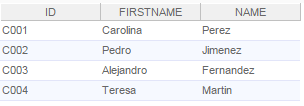
What happens if our contacts are not registered in eFront, but they are in another database that we own? Easy, we will only have to add the attribute “Connection” to the SQL statement. In this attribute we will write the connection string of the database we want to access.
DATA WORK. EXAMPLE;
SQL “SELECT TOP 4 ID, NAME, SURNAME FROM T_CONTACT” CONNECTION=”OurDBConnectionString”;
COLUMN ID;
COLUMN FIRSTNAME;
COLUMN NAME;
RUN;
PROC PRINT DATA = WORK. EXAMPLE NOOBS;
RUN;
Here are the easiest ways to create tables in eFront. Of course, we can combine the above ways to expand the information contained in our tables, for example, when we need to combine several columns in our table.
